
DELIVERABILITY
Why Are Your Business Emails Going to Spam?
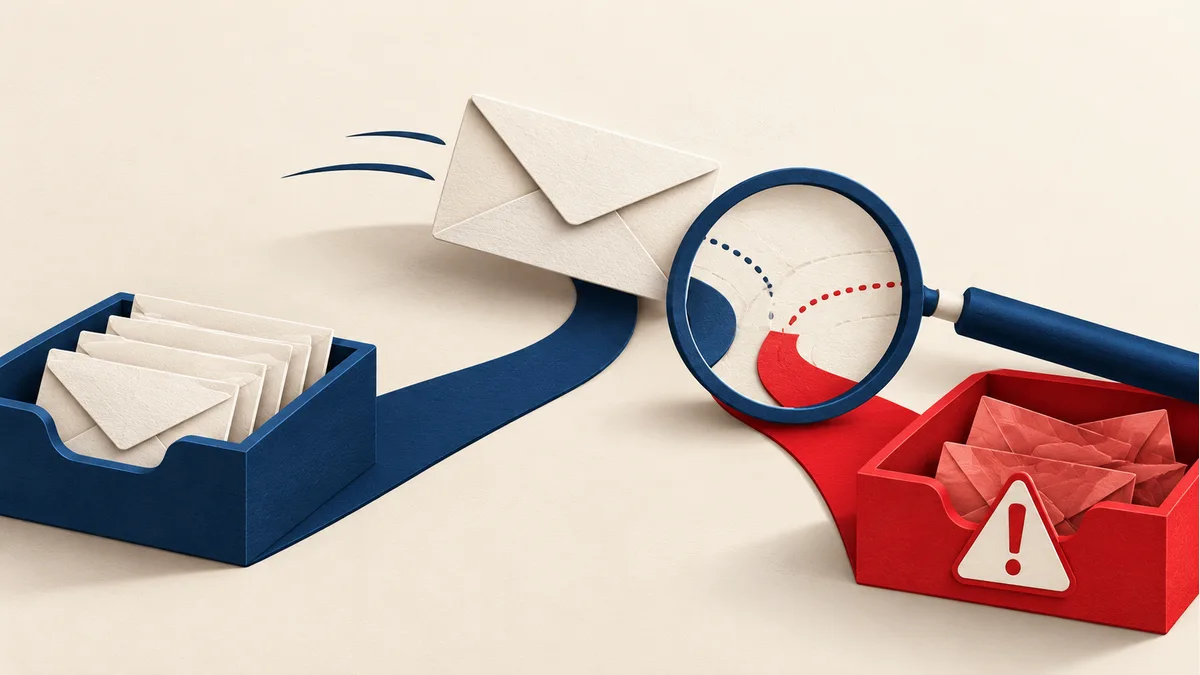
Your customer says the invoice never arrived. Then they find it in junk—and you’re left wondering whether your whole email setup is broken. Start with that invoice: which app sent it, where it ended up, and what happened along the way.
Find out which app sent the message
When customers in North America and Europe report missing messages, group reports by receiving provider and sending route before assuming a regional problem. Record timestamps in UTC and the customer’s local time zone. A corporate quarantine in London and a junk-folder report in Toronto may need different checks even if both people describe the email as missing.
List the systems that send as your business: your mailbox, website contact form, invoicing app, and support tool. Test each separately with recipients who agree to help. A working Outlook message doesn’t prove your website uses the same sending route.
- Record the date, sender address, sending application, and affected recipient provider.
- Ask for the original message or full headers, with private content redacted before sharing.
- Compare a recent successful message from the same application.
- Check whether the message arrived in junk, was quarantined, or was rejected entirely.
Ask your customer what they mean by ‘missing.’ Was it in their junk folder, held in a company quarantine, or rejected with an error? If there’s an error, get the exact wording. Those answers matter: you can spend an afternoon working on spam placement when the real issue is a message that was never accepted.
Check authentication before editing DNS
Ask your administrator to read the recipient system's authentication results and compare them with the actual sending service. Google's DMARC guidance explains why authentication must align with the visible From domain. A pass is useful evidence, not a guarantee that the message belongs in the inbox.
Don’t overwrite records with a template from an unrelated provider. First account for every legitimate system that uses your domain; otherwise a change intended to fix the website could disrupt invoices.
Send a fresh test from the app that failed. An older message from your ordinary mailbox won’t tell you much about the billing system. Keep the sender address, time, and authentication results together so your administrator can match the message to its settings. Remove private invoice details before sharing it, but leave the technical information they need to investigate.
Most sending apps provide instructions for authenticating your domain. Compare those instructions with what’s actually published, and check that they belong to your account. Ask whoever manages DNS to save the old values before making a change. Then test the billing app again—and check the other tools too. Fixing one sender is a poor trade if it accidentally stops your customer support mail.
Is it one recipient or a wider problem?
One recipient's experience isn’t enough to diagnose the whole domain. Microsoft documents how blocked senders are handled in Outlook. Ask the recipient's administrator to inspect their filtering decision if the issue appears confined to that organisation.
Keep your comparisons fair. Ask another willing recipient at the same email provider to check a message from the same app. Don’t compare a routine reply to a long-standing customer with a cold campaign to strangers and assume the difference proves a domain problem. The relationship, purpose, and sending tool all matter. Make a note when those conditions differ.
If a customer needs a quote urgently, use a contact route you already share, such as a phone call, and confirm the address. Sending the same invoice five more times rarely helps you understand the failure. It can also leave the customer unsure which copy is current once the messages eventually turn up.
Change one thing, then check again
Keep a short log: evidence, suspected cause, change, and result. Retest the same route after fixing a confirmed issue. Avoid a broad allow-list request that bypasses security checks; use the recipient provider's legitimate false-positive review process instead.
If the problem affects an outreach campaign rather than ordinary customer correspondence, use the separate campaign troubleshooting guide below. It includes audience and sending-pattern checks that don’t belong in a simple invoice test.
Think back to when the complaints began. Did you move mailboxes, connect a new app, or change the billing system that week? Put those events on a short timeline. You don’t need a complicated incident report: a few dated notes can tell you where to look next. If the billing integration was the only thing that changed, start there before touching every account.
For a new relay, follow submission and final delivery separately. An application success response can describe provider acceptance while later failures remain in another log. Confirm that the investigation covers the actual delivery route.
When the test works, write down what fixed it and which sender you checked. If one customer still has a separate filtering issue, leave that open rather than calling the entire problem solved. These notes save the next person from starting over. They also let you recognise the same fault later without asking customers to forward private invoices all over again.
Quick checklist: match the symptom to the sender
| Observation | Next investigation |
|---|---|
| Mailbox works; billing app does not | Compare the two messages and their actual sending services. |
| Only one recipient organisation is affected | Ask its administrator for the filtering decision on a specific message. |
| Several sending tools changed at once | Build a timeline and test each tool separately. |
| A message is rejected rather than placed in junk | Preserve the rejection response; investigate that failure, not folder placement. |
Use the table to choose your next check. It won’t diagnose the cause on its own. Keep the sending time, app, recipient provider, and result with your notes, and share redacted headers through your support channel. Once you’ve corrected a specific fault, repeat the same test so you can see what changed.
Common mistakes
- Changing all sending routes at once.
- Treating junk and rejection as the same outcome.
- Sharing unredacted customer messages in public support threads.
You don’t need to guess your way through a delivery problem. Bring us the affected app and a redacted example message, and TransmitInbox can help work through the setup and decide what to check next.
Source references
Editorial review: October 14, 2026 · TransmitInbox team. Consult the linked documentation for current requirements.