
EMAIL SETUP
SPF, DKIM and DMARC Errors: A DNS Troubleshooting Checklist

You’ve added the DNS records, but the next email still fails authentication. Adding another copied record can make the situation harder to untangle. Start with the service that sent the message, then check what the receiving system actually saw.
Find every service sending for the domain
If your administrators work in North America and Europe, record DNS changes in UTC and name the person responsible. A London teammate’s morning may be a New York teammate’s overnight window. Keep one change log, including the sending service and rollback record, so both teams investigate the same configuration rather than editing it independently. Match each message’s DKIM domain and selector to its sending service; test every affected route.
List each system sending as your business, its owner, and the domain it uses. Include billing, support, website forms, and outreach tools. Export existing DNS records and record the intended change before editing the authoritative DNS service.
First find out where your DNS is managed. That may be a different account from the company where you registered the domain. Confirm who can edit it and save the current records where possible. Then list the tools sending for each domain, including invoices, support mail, and website notifications. You don’t want a fix for outreach to accidentally remove another legitimate sender.
Use the instructions for your own provider and account. Write down the hostname, record type, and value so the administrator knows exactly what belongs where. Some DNS screens append the domain for you; others don’t. Check the final published name, rather than assume a pasted value ended up at the intended location. Another company’s working example isn’t a configuration you can copy blindly.
Check SPF without creating a second record
Google's SPF troubleshooting guidance states that a domain should have one SPF record covering its senders. Don’t create another v=spf1 record whenever a new tool asks for authentication. Have the administrator reconcile authorised senders and check the resulting syntax and DNS lookup limits.
Inspect the identity SPF actually evaluates on the received message. It concerns the SMTP envelope sender, or HELO identity in relevant cases, rather than simply the address a person sees in the From line. If a third-party service uses its own envelope domain, your visible business domain's SPF record may not explain that particular result.
Don’t keep authorising every tool you’ve ever connected. Check which ones still send legitimate mail and which have been retired. At the same time, avoid removing a sender just because nobody remembers its name; it might still handle invoices or support notifications. Ask its owner, check the traffic where you can, and keep the previous value so an unintended change can be reversed.
Read DKIM and DMARC on the received message
Verify that the sending service actually signs messages with DKIM and that its selector resolves as instructed by that provider. Compare the recipient's authentication results with the service you intended to use. A published key doesn’t by itself show that a particular message was signed.
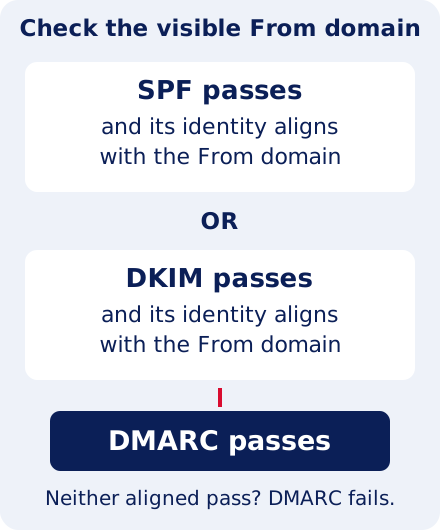
Google's DMARC setup guidance describes alignment: DMARC needs a passing SPF or DKIM result aligned with the visible From domain. An unrelated service domain passing its own authentication isn’t enough. Review all legitimate senders before tightening policy.
Use the receiving system’s authentication results and keep track of how the message got there. A forwarded sample has taken a different route from direct mail, which can affect the comparison. If you’re also checking receiving-provider rules, our Gmail and Yahoo guide covers those requirements separately from the task of fixing this sender’s configuration.
Keep track of changes and test the fix
Record what each change is intended to fix. Don’t replace unrelated website or mailbox-routing records as part of a copied authentication recipe. Ask the mail provider for the precise hostname, record type, and value required for your account; don’t guess selectors or keys.
After the edit, check the authoritative DNS result. Other lookups can still show cached data, so don’t keep changing the record because two tools briefly disagree. Note which service you checked and when, then send a fresh message once the configuration can be tested. A DNS screenshot tells you what was looked up; the received message tells you how that sender behaved.
Getting authentication right won’t settle whether you may contact the audience. Keep that compliance check separate. For the DNS task, check that the affected sender works and that other legitimate senders haven’t been disrupted. If one application still fails, leave it assigned to its owner instead of marking the whole domain fixed.
Use a safe verification record
- Before: export, sending-system inventory, and a redacted failing message.
- Change: exact record edited, administrator, time, and rollback value.
- After: authoritative DNS result and a newly received test message.
- Decision: confirm other legitimate sending systems still work before closing the issue.
Keep private DKIM keys and account credentials out of public tickets. If a test remains unclear, retain the evidence and escalate rather than repeatedly changing multiple records.
Quick checklist: read the three results together
| Check | What to inspect |
|---|---|
| SPF | The actual envelope-sender domain and authorised sending path. |
| DKIM | The signature’s signing domain, selector, and verification result. |
| DMARC | Whether a passing SPF or DKIM identity aligns with the visible From domain. |
Read the checks together. SPF evaluates an SMTP identity; DKIM verifies a domain signature. The linked standards explain the details, while the receiving system’s results show what happened to your test. Use the diagram to understand alignment, not as a DNS recipe. The values you publish still need to come from the provider for your particular sending account.
Use aggregate DMARC reports to compare observed sources with your authorised inventory. Do not add an unfamiliar sender to SPF merely to improve a dashboard; identify its owner and purpose first.
Technical references: RFC 7208: SPF and RFC 6376: DKIM.
Common mistakes
- Copying unrelated provider values.
- Adding a second SPF record.
- Checking only one sending application.
- Editing several records without an export or rollback plan.
If the records look right but the messages still fail, bring the sending-app details and a redacted example to TransmitInbox. We can help work through the authentication checks without making unrelated changes to the rest of your email setup.
From: sender@example.com
Authentication-Results: receiver.example;
  spf=pass smtp.mailfrom=vendor.example;
  dkim=pass header.d=vendor.example;
  dmarc=fail header.from=example.com
- SPF authenticates the envelope domain shown here, vendor.example.
- DKIM authenticates vendor.example too.
- Neither pass aligns with the visible From domain, example.com. This demonstration therefore shows DMARC failing.
Read the receiving system’s actual result. Real messages may contain several signatures and additional details.
Source references
Editorial review: October 14, 2026 · TransmitInbox team. Consult the linked documentation for current requirements.